Best Presenter Remote + Software Combos for Mac
Build a smooth Mac presentation stack by pairing a presenter remote with annotation and screen share software.
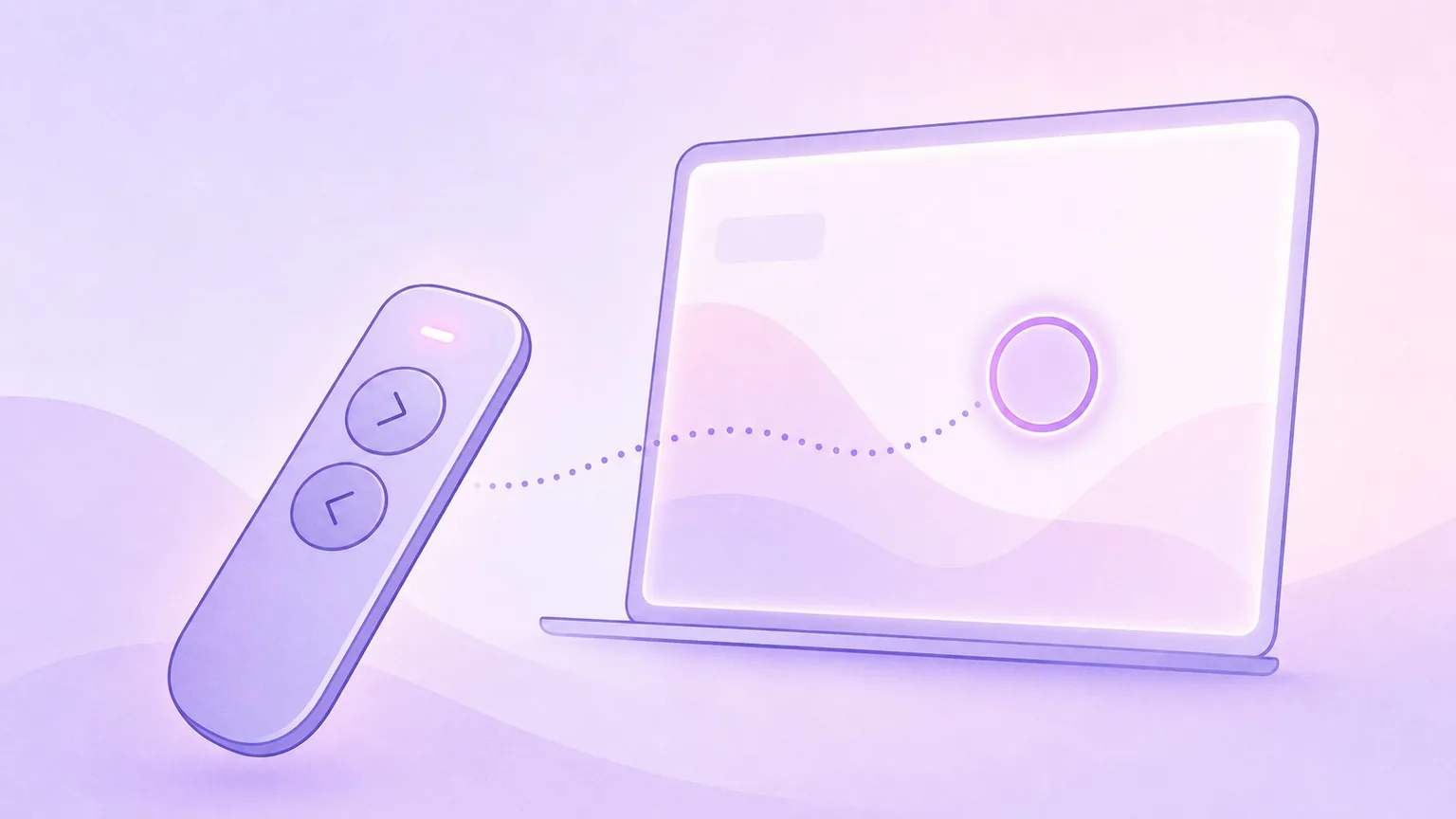
The best presentations are not just about slides. They are about control, clarity, and focus. A simple presenter remote plus a few key apps can make your delivery feel effortless.
Presentify is the missing layer for most Mac setups: it lets you annotate any screen, highlight your cursor, spotlight details, and zoom into small content. Pair it with the right remote and presentation app to completely stand out from the crowd.
What to look for in a presenter remote
A good remote should:
- Advance slides reliably
- Work over Bluetooth or USB with low latency
- Have a clear next/previous button layout
- Include a laser pointer or a reliable on-screen alternative
If your remote does not have a laser pointer, Presentify's cursor highlight and spotlight features are a strong substitute.
Popular presenter remotes that work great with Mac
- Logitech Spotlight (Bluetooth or USB receiver, premium choice)
- Logitech R500 (solid everyday option with USB receiver)
- Logitech R400 (classic, reliable, USB receiver required)
- Kensington Presenter Expert (trackball-style pointer, USB receiver)
- Kensington PresPro or PresPro 2 (compact, USB receiver)
Combo 1: Slide apps + Presentify + any reliable remote
Best for: most slide tools like Keynote, PowerPoint, Google Slides, Canva, Pitch.com, Slides.com, and other similar ones.
- Use your remote for slide navigation
- Use Presentify to highlight the cursor and spotlight key points
- Keep the app in presentation or full-screen mode for the cleanest delivery
Combo 2: Zoom or Google Meet + Presentify + remote
Best for: live webinars and online workshops.
- Share your entire screen (or a portion of your screen in Zoom) for Presentify's annotations to appear
- Use Presentify to annotate on top of slides or apps in real time
- Spotlight and zoom to guide attention
Combo 3: OBS + Presentify + remote
Best for: recorded tutorials and live streams.
- Use OBS, CleanShot X, Screen Studio, or QuickTime Player (built-in) to record your screen
- Add annotations and cursor highlight while recording
- Keep focus on the exact element you are discussing
Add a Stream Deck for power users
If you want one-tap control, map Presentify shortcuts to a Stream Deck:
⌃ + Afor Annotate⌃ + Sfor Cursor Highlight⌃ + Lfor Spotlight^ + Zfor Zoom
This reduces hand movement and keeps your delivery smooth. You can, of course, change these key shortcuts to your liking in Presentify > Settings > Shortcuts.
Quick setup checklist
- Connect your remote and test slide navigation
- Turn on cursor highlighting in Presentify
- Set your favorite annotation color
- Practice spotlight and zoom for detail-heavy slides
The best presenter setup on Mac is simple: a reliable remote, a slide tool, and clear on-screen cues. Presentify ties it together so your audience always knows where to focus.
Note: This post contains affiliate links. If you buy through them, we may earn a small commission at no extra cost to you.